Water World

LV_11

At this stage in the project, I am beginning the transition from a purely technical demonstration of the wave systems I have created to developing a functional gameplay loop. While the previous iterations of the project focused on isolated technical features, I am now introducing gameplay mechanics that will keep the player engaged and contribute towards a complete playable experience.

To guide the development of the game and prevent scope creep, I first established a clear set of target features for the final build. Defining these objectives allows me to focus development on systems that work together to create a cohesive gameplay experience.

Overview Level

In addition to the core gameplay levels, I created an Overview Level to act as a dedicated showcase environment for each feature developed throughout the project. Rather than constantly switching between individual levels to demonstrate new functionality, this overview provides a single location where every implemented system can be viewed and tested independently.

This approach reflects common industry practices, where developers maintain dedicated demonstration or showcase levels to review features in a controlled and easily accessible environment. By separating feature demonstrations from the main gameplay experience, it becomes easier to evaluate individual systems, identify issues, and present technical work without the distractions of the full game.

Creating this level will also allow me to present my work more effectively to potential employers, providing a clear demonstration of each implemented feature and the progression of the project's technical development.

Buoyancy Debug Visualisation

The first feature I decided to implement was a visual debugging tool for the buoyancy system.

In earlier versions of the project, buoyancy relied on the 3D gizmo locations displayed when selecting a buoyant object within the Unreal Engine editor. While functional, this approach became increasingly impractical when testing multiple buoyant objects simultaneously, making it more difficult to diagnose issues related to buoyancy behaviour and force distribution.

To address this, I introduced a visualisation system that renders each buoyancy point directly within the game world. This provides an immediate representation of both the size of each buoy and its position relative to the object to which it is attached, allowing the buoyancy setup to be inspected during gameplay rather than only within the editor.

Each buoy is visualised according to its radius. Larger buoys represent a greater displacement volume when submerged, resulting in a stronger upward buoyant force being applied. This visual representation directly reflects the underlying calculations performed by the custom buoyancy component, making it significantly easier to verify that each buoy is behaving as intended and to identify any configuration errors during development.
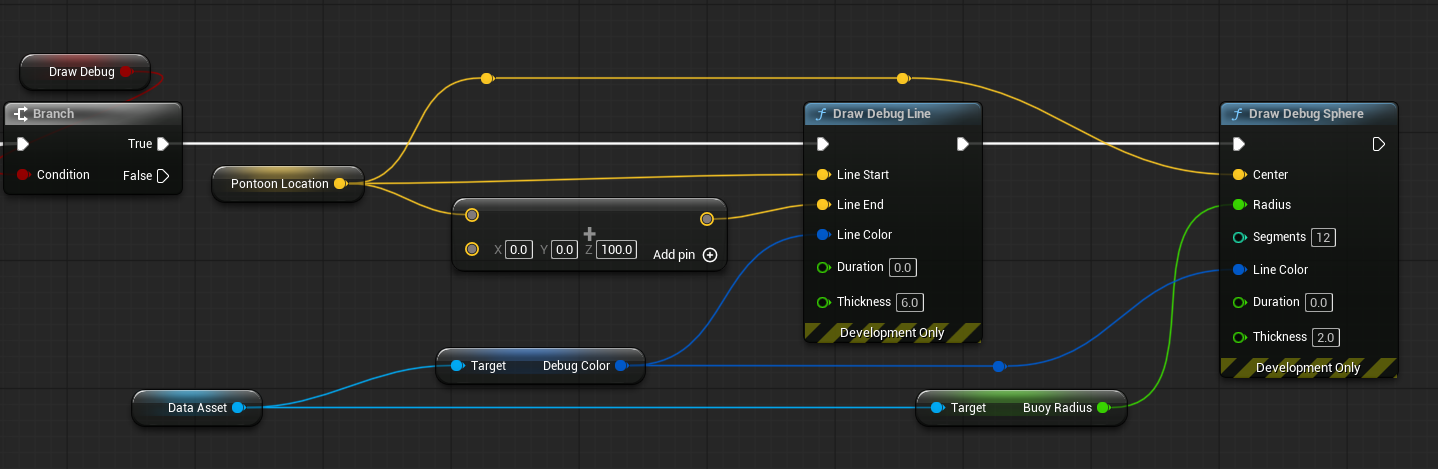
Buoyancy debug visualisation
Connection Between Buoy and Object

Following the implementation of the Buoyancy Debug Visualisation System, the next step was to establish a method for physically connecting buoyant objects to non-buoyant objects. This mechanic forms a core aspect of the intended gameplay, as it provides the means for the player to recover underwater loot by attaching it to floating buoys and allowing it to be lifted to the surface.

To prototype this system, I created a temporary actor that allowed me to experiment with different connection methods before deciding on a permanent implementation.

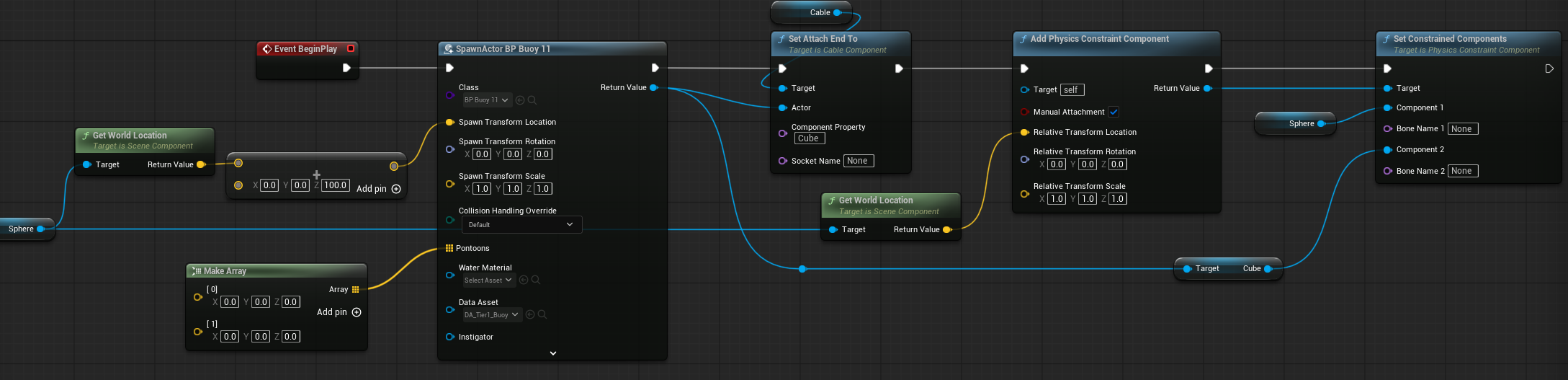
Within this actor, I first created a physics-simulated sphere that represents the object the buoy must lift. I then added a Cable Component, positioning its starting point on the sphere to provide a visual representation of the connection between the two objects.

Prototype buoy and object connection blueprint

On Event Begin Play, the buoy actor is spawned and the end of the cable is attached to it. This cable serves purely as a visual connection and does not influence the physical behaviour of either object.

To create the physical interaction, I implemented a Physics Constraint Component. The constraint is positioned at the sphere and links both the sphere and the buoy together, allowing them to interact through Unreal Engine's physics system.

Using the Physics Constraint Component allows the motion limits of the connection to be configured, enabling the buoy to apply an upward pulling force while still permitting natural movement such as swinging, drifting, and reacting to the surrounding wave simulation. This results in a much more believable physical interaction while providing a solid foundation for the final gameplay mechanic.

Chain Connection Between Buoy and Object

Following the implementation of the Physics Constraint-based Connection, I explored ways to improve the visual and physical realism of the connection between the buoy and the attached object.

During this process, I researched techniques for simulating chains and decided to develop a custom chain system to replace the simpler single constraint setup.

Here is one of the videos I followed to get a start on this (YouTube Link)

I created a system to dynamically create a length of chain, with each having a Physics Constraint created between the links at the correct location. This allows us to have a more physically accurate simulation of the tension between each link, at the cost of performance from all the physics simulations happening depending on the length of the chain and the amount of chains being used at once.

Going forward I will have to balance the impact of this performance cost against the realism the chains give us. This gives us insight into what modern games have been struggling with as they try to push the boundaries while trying to keep players with older hardware apart of their ecosystem.

If this method of using chain links via Physics Constraint becomes too intensive, I will investigate other methods of connecting the Buoy to the Artifact, maybe going down the route of making the Cable Component look like a chain, but not with the same physics properties as displayed here.

Underwater Post Processing

To achieve a believable water environment, it is essential that the player can visually distinguish between being above and below the waters surface. Without this transition/difference the scene lacks depth and realism, as the player receives no visual difference when entering the water.

To address this I worked on implementing a underwater Post Processing Volume. I also inspected the approach used in Unreal Engine’s Water Plugin to better understand how underwater rendering is typically handled.

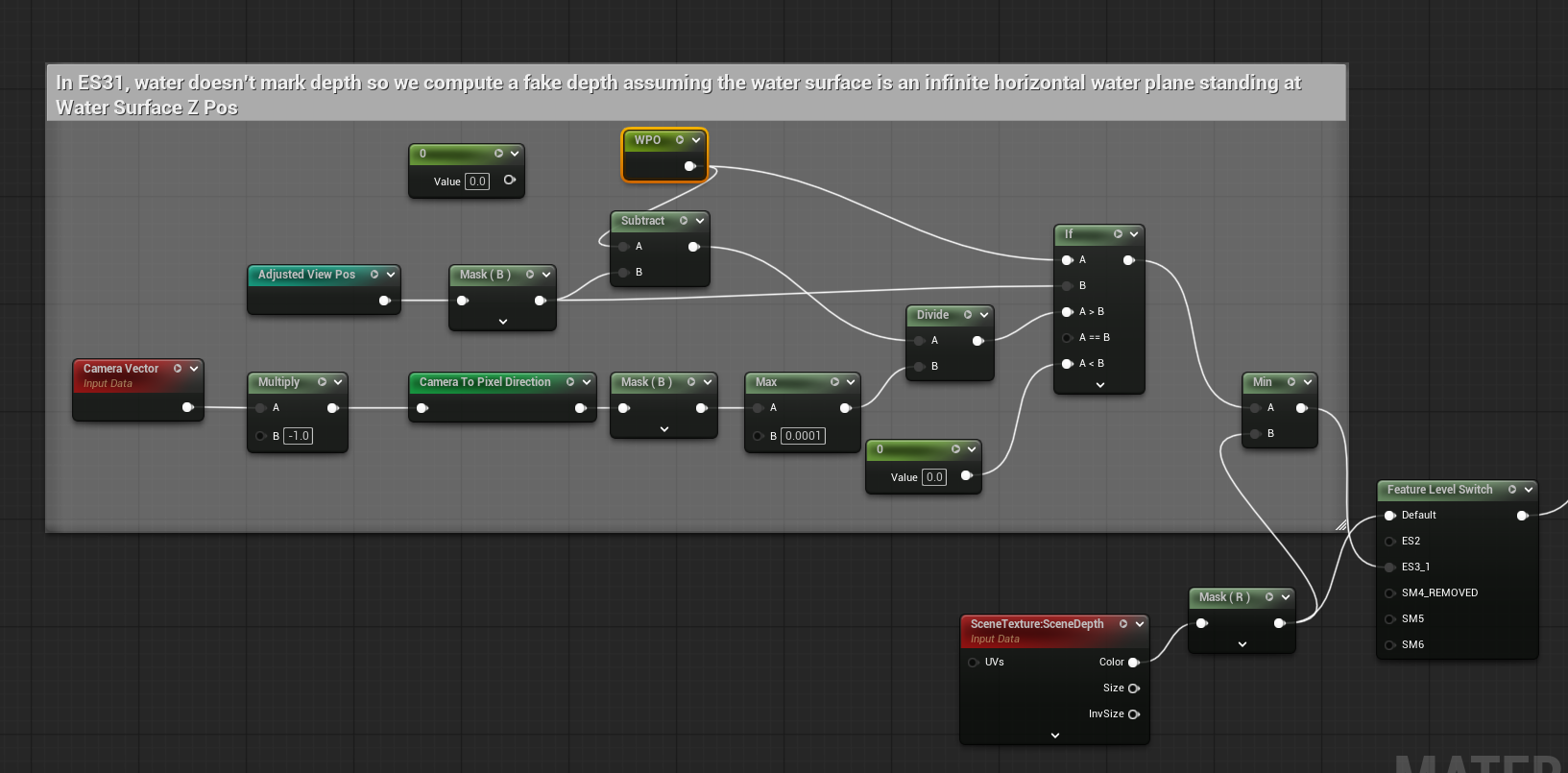
In this PPV I have to re-calculate the Wave Position Offset to ensure that when the player passes through the surface of the waves, the processing is only applied when they go below, other wise , if this is incorrect the player will see the post processing effect when not below the waves.

So we re-calculate the WPO, and compare it against the position of the camera.

Underwater post processing

Once we get this working we get a pretty accurate transition between above and below the waves.

While this isnt 100% accurate, it is accurate enough that the player would only see a mistake for a split second while moving and bobbing up and down, as a result the current implementation is sufficitently accurate for gameplay purposes and does nto require further optimisation at this stage.

Artifacts Assets & Glow

To introduce one of the objectives I had mentioned at the start of this document, I created a new blueprint actor called “BP_Artifact”, representing collectible loot that will be scattered throughout the underwater environment. These Artifacts are intended to be remnants of a lost civilisation, reinforcing the projects narrative theme while also acting as player rewards/objectives.

During initial testing, I found that the default mass of the artifact meshes were too low, around 1kg to 50kg. This caused issues with the buoyancy system as even low tier buoys could lift all artifacts with little resistance.

To solve this problem, I multiplied the default mass of the static mesh on Begin Play by 50x to increase its weight. This gives the Artifacts a more believable physical behaviour and ensures that the heavy Artifacts cannot be pulled to the surface by the lowest Tier Buoy.

During initial testing with the artifacts underwater I identified a major issue. This being that the Artifacts were difficult to distinguish from the surrounding environment due to the Post Processing Effect from the Water Volume, and the terrain textures and assets. This negatively impacts the players ability to reliably locate the Artifacts, therefore impacting gameplay overall.

This made me realise that I would have to make some changes to ensure the gameplay loop was enjoyable.

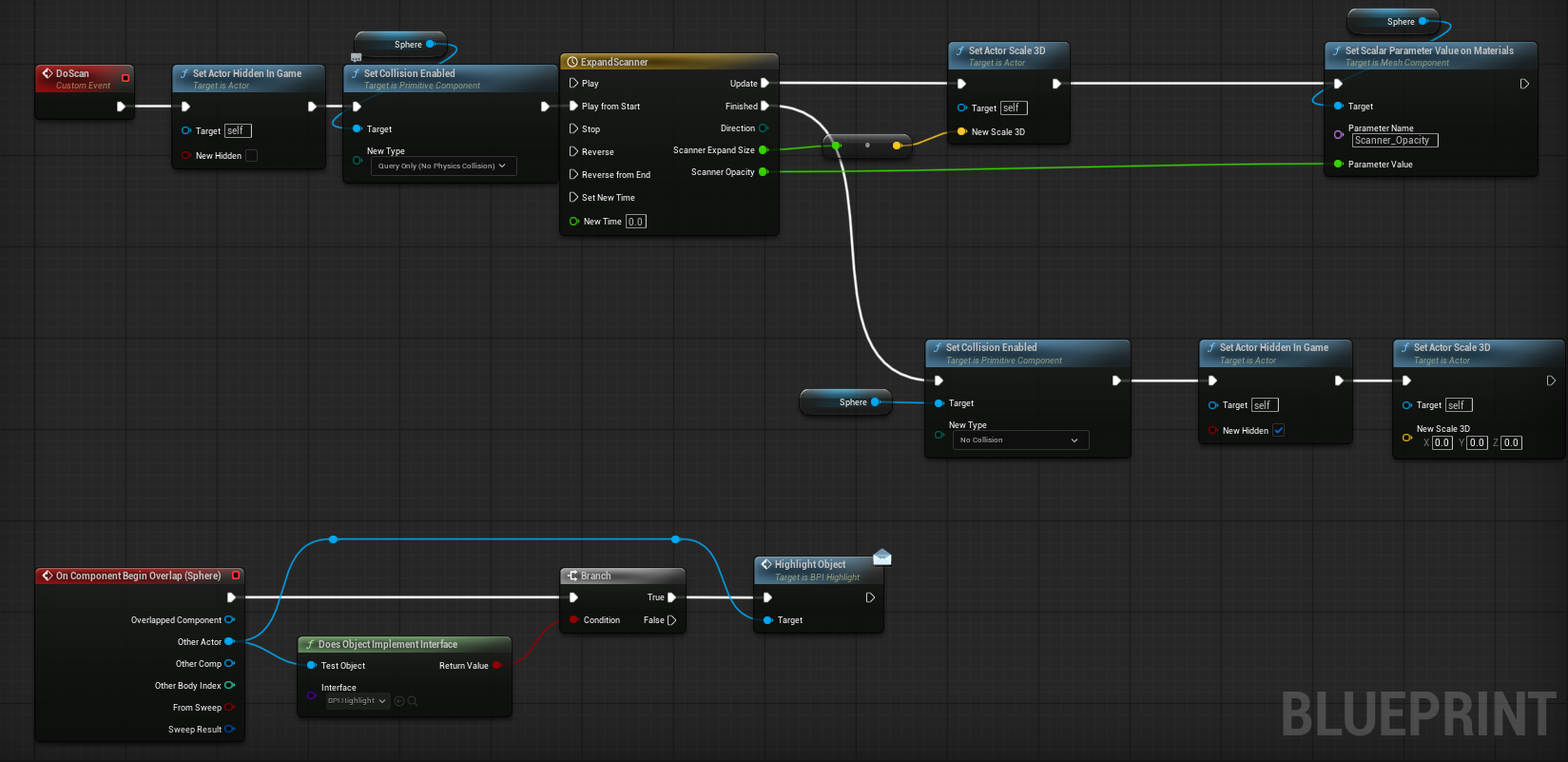
To address this issue, I did some research on a scanning mechanic that would originate from the player. I did this by creating a new blueprint called “BP_Scanner”. In this blueprint I created a sphere, that has a new Material on it, which looks like a glowing ring. Overtime I increase the size of the sphere, so it overlaps the environment, this looks like its scanning the area. When it overlaps and Artifact it applies a highlight to the artifact.

Scanner blueprint Artifact highlight

Originally this didn’t work very well since the Water Post Processing was overriding the glow material that was applied to the artifact causing it to work above water, but not below the surface where the Water Post Processing was applied. So, I had to create a separate Post Processing Material and custom depth stencil for the Artifact to use, therefore allowing the Highlight to work below the surface of the water.

Player Dragging Artifact

Another problem I thought of that would be an issue when I started creating buildings for the Artifacts to spawn in and around, is that the player cannot move the Artifacts besides using the Buoys to lift the Artifacts straight up. So, if the Artifacts spawn inside a building, the player has no way of getting the Artifacts out.

To solve this, I decided to take Inspiration from R.E.P.O. (2025), with their grab mechanic. I could have gone with a Physics Handle, to have it closer to how R.E.P.O. (2025) does it but I had an issue with trying to make the object have a “feel” of weight.

What I mean by this is that I could make the player lift the artifact, but not get a proper delay on the movement of the Artifact based on the weight of the artifact.

Instead, I decided to make a rope that attaches from the player to the Artifact and pulls it along behind them. To make it feel better I made it so the weight of the Artifact and the distance from the Artifact is used to decrease the speed of the player. The player’s speed is reduced based on the distance, and if the object is too heavy for the player, the players speed is set to 0. This makes the Tension of the rope connection believable.

Player Swimming

Next, I decided to create another core mechanic that the player would need to move around the world, their method of swimming.

Thankfully this was easy enough to implement as I could tweak my Buoyancy System Component to be added to the player, and report if the Buoy Point is above or below the water.

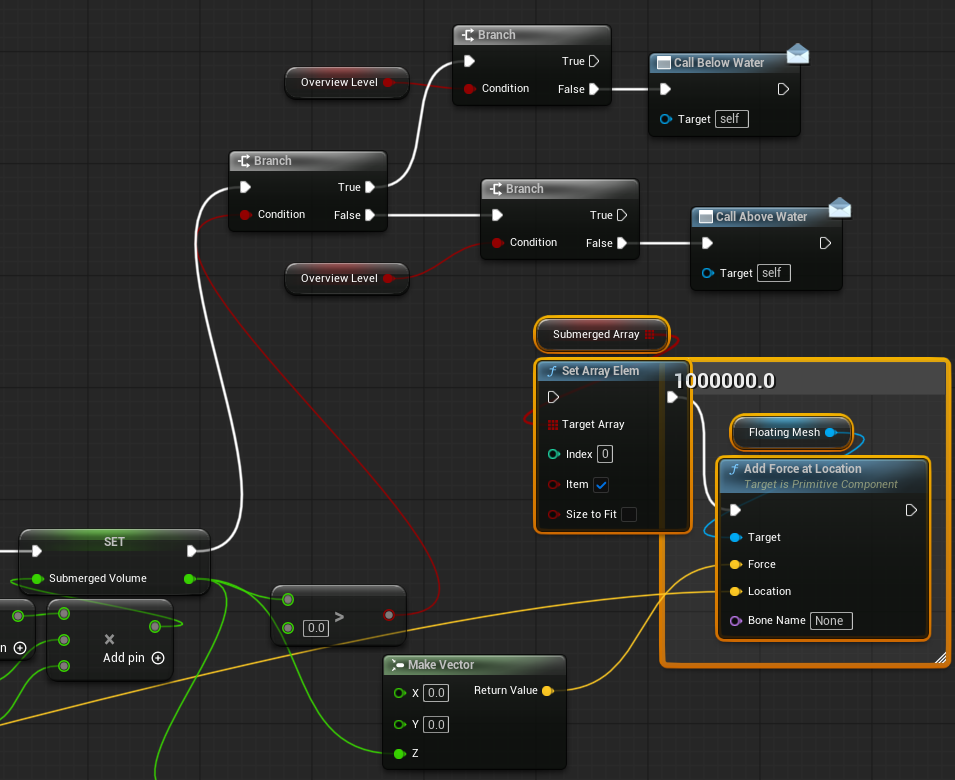
I do this by creating a couple Event Dispatchers which allow me to fire custom nodes from the component to the parent actor without casting. This helps with performance and scalability, while also allowing me to change the players movement state.

Player swimming event dispatchers

Instead of the Buoyancy system applying force to the parent mesh when below the waves, I have it instead going to call if its above or below the waters surface as the player doesn’t need the force applied to them.

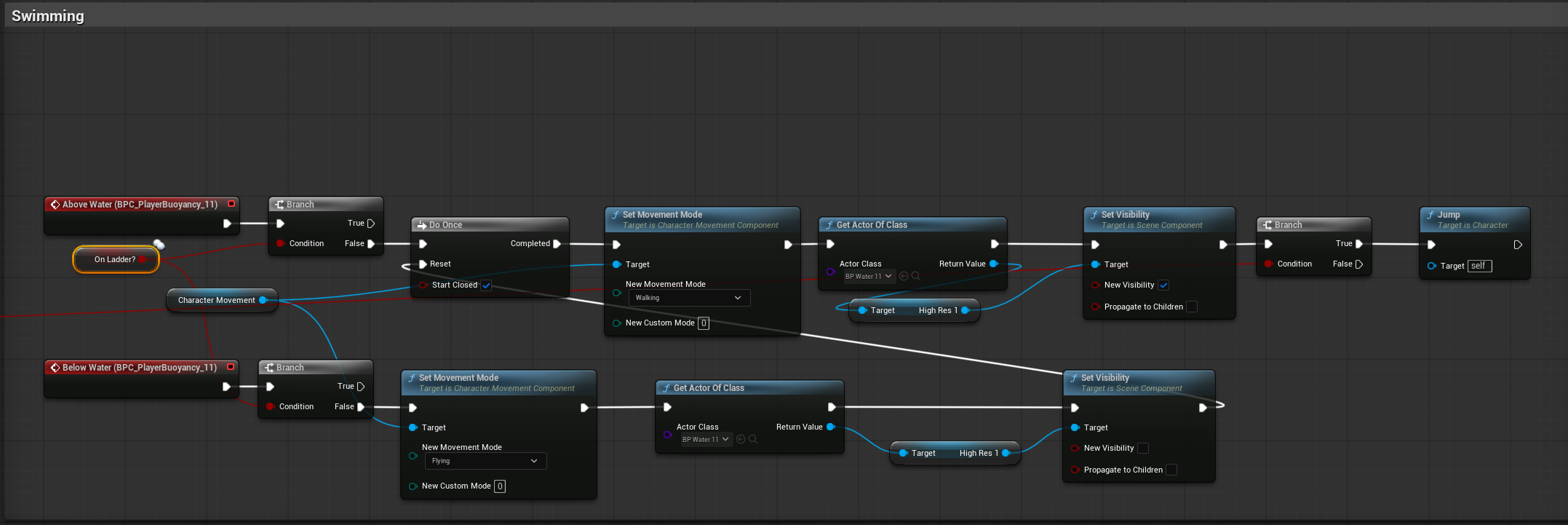
The Call Above/Below Water then calls functions on the player to change the players movement state to either flying or walking.

Player movement state
Player Using Ladder

After creating a swimming system, I realised there wasn’t a way for the player to get onto the ship, which is a necessary mechanic to have in a game where the player is required to jump into the water and exit the water frequently.

I began researching ladders in UE5 online, but most available solutions relied on applying upward or downward forces to move the player. While functional in static environments, this approach was not suitable for my use case as the ship is constantly moving and reacting to wave motion. As such using a force-based system would not be suitable for my use case.

To address this, I began exploring the use of spline-based movement instead. This approach allows the player to be guided along a predefined path via the spline points. This method also provides greater flexibility in design, unlike traditional vertical ladders these splines can be shaped to follow the curvature of the ships hull, resulting in a more visually accurate and adaptable solution.

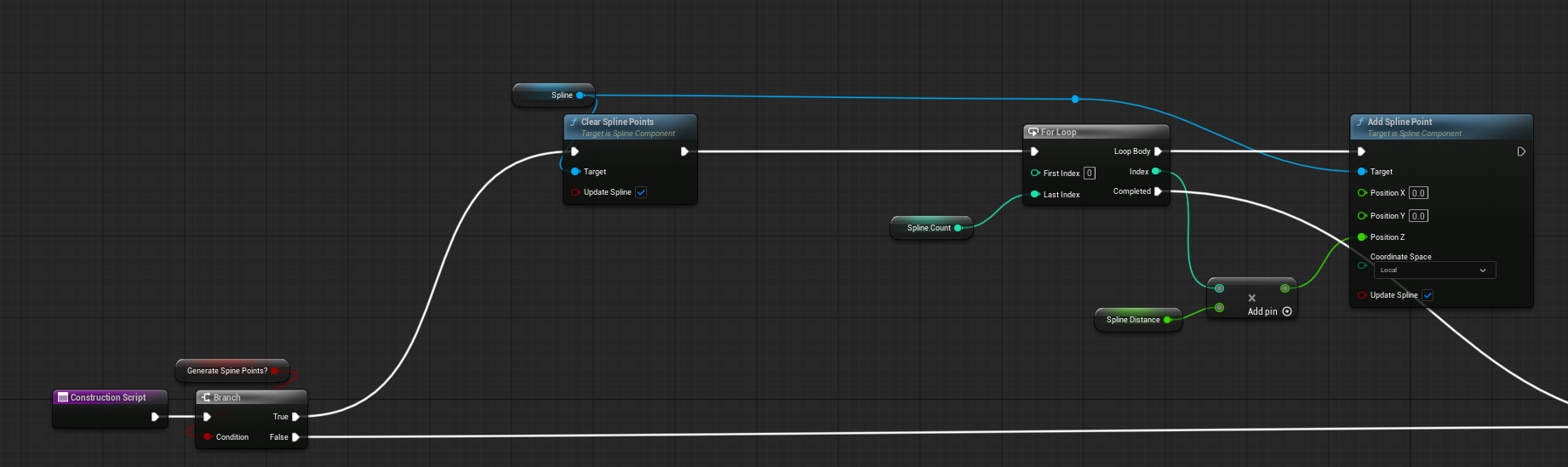
During construction of the ladder, it checks if the Boolean variable that determines whether it should generate a default vertical ladder or allow for manual spline editing. When set to generate automatically, the system creates spline points dynamically to form a standard up and down ladder. When disabled, the spline can be manually adjusted within editor, allowing for custom shapes and more complex ladder designs.

Spline ladder generation

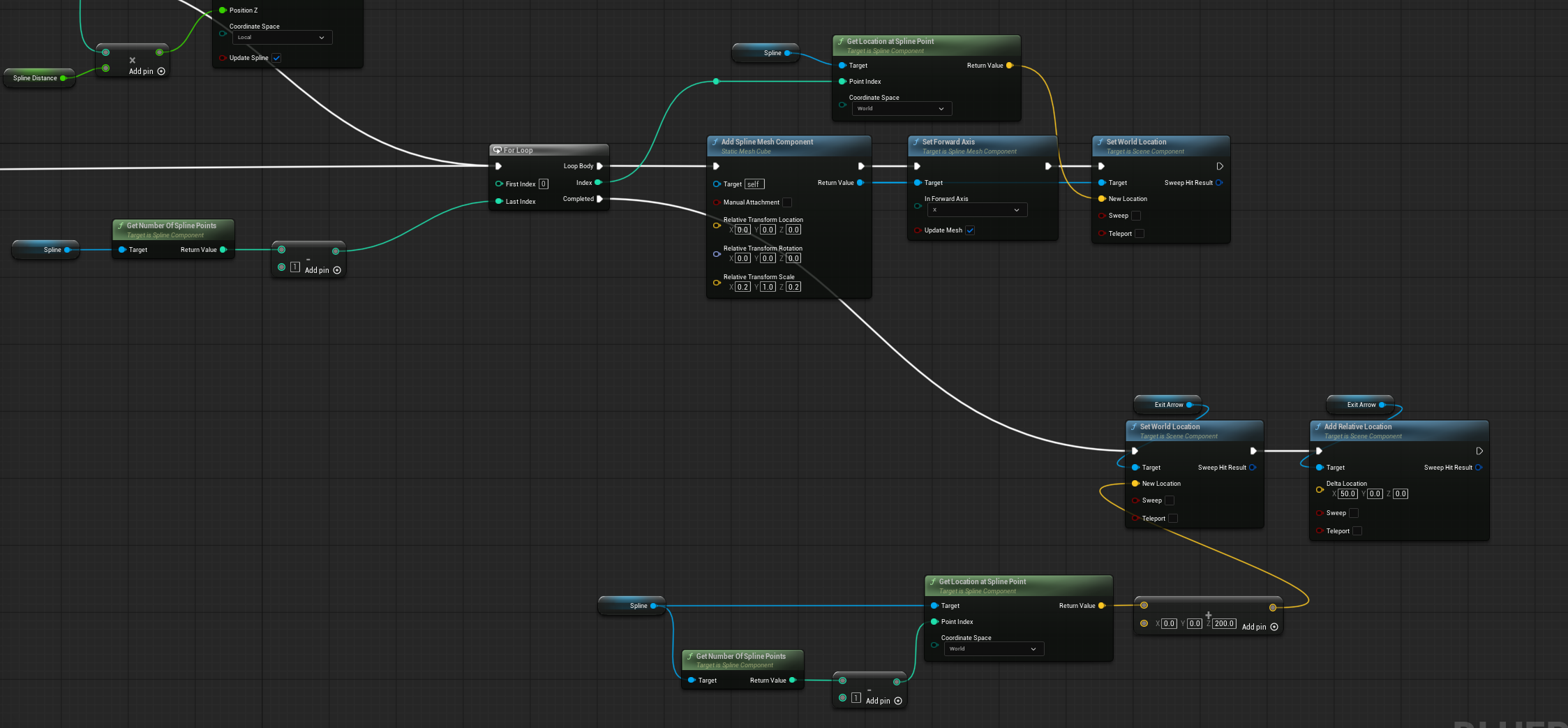
The spline also defines an exit point, represented by an arrow component. This is used to determine where the player should move once they reach the top of the ladder.

Spline ladder exit point

On BeginPlay the total length of the spline is stored, this value is going to be used to determine when the player has reached the end of the ladder.

When the player interacts with the ladder, they are first moved to the closest spline point along the spline. From this point onward, the players movement is constrained to the spline path and used to move them along it. Furthermore, since the ladder is attached to a moving ship, it is necessary to update the position of the player continuously to maintain proper alignment with the ladder. This is handled using Event Tick to keep the player in the correct position.

We then use the players movement to move the player up and down, checking if they are at the end of the ladder, if they are we use a timeline to lerp them to the exit arrow location.

I also put some work in to ensure that this works in multiplayer, using RepNotify variables to replicate the conditions for the players.

Here is the result of this.

Updated Ship

At this state of development, I introduced an updated ship model to better represent the intended final player vessel. This allows for more accurate testing of player interactions, buoyancy behaviour, and onboard systems within a more realistic context.

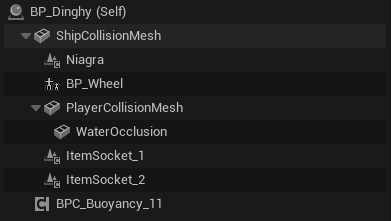
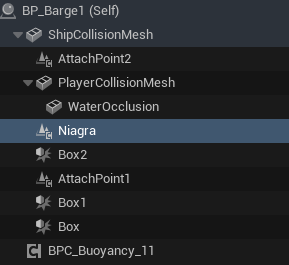
This is the updated blueprint layout. I also separated the collision into 2 different meshes, each with a separate purpose.

The first called “ShipCollisionMesh” is a low-poly collision mesh with simulated physics enabled. This mesh is used for ship-to-ship interactions and general physics simulation; by having it low poly and not complex, we are able to have physics enabled.

The second mesh is called “PlayerCollisionMesh”, this mesh has complex collision enabled, which cannot have simulated physics enabled otherwise I would be using 1 mesh instead of 2. This mesh allows for a more precise interaction when the player walks on the ship, or when smaller objects come into contact with it.

This allows for us to have a finer detailed collision for the player and small objects to use, while still being able to have simulated physics turned on.

Updated ship blueprint

In addition to collision handling, the ship blueprint also includes predefined item socket locations. These sockets are used as attachment points for systems such as a barge, allowing objects to be consistently positioned and connected when spawned.

This ship also contains additional systems, including the Steering Wheel and Water Occlusion setup, which will be explored in later sections.

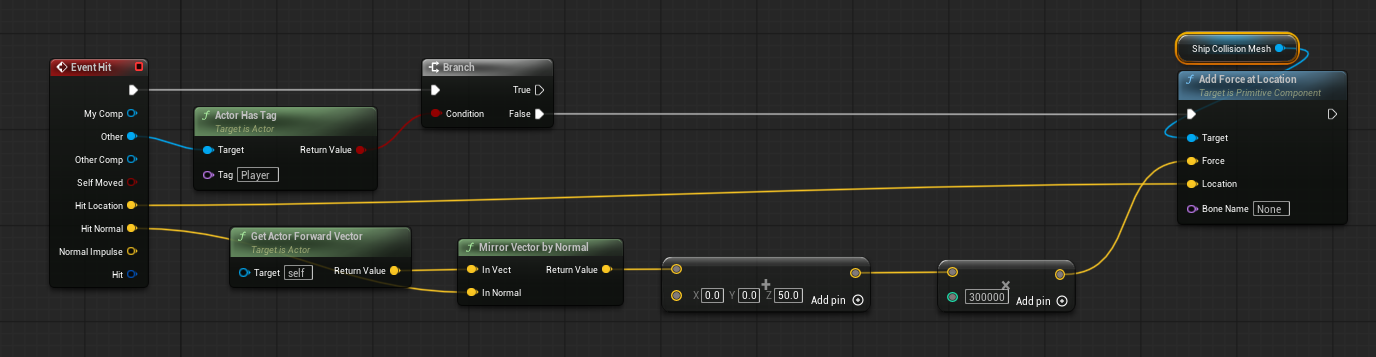
Another reason why I had to have separate collision meshes for player and ship collisions is because I have worked on a system for ship to ship collisions. This works by detecting ship to ship collisions and forcing them away from each other to make sure they don’t get stuck against each other, as I was having problems with this before.

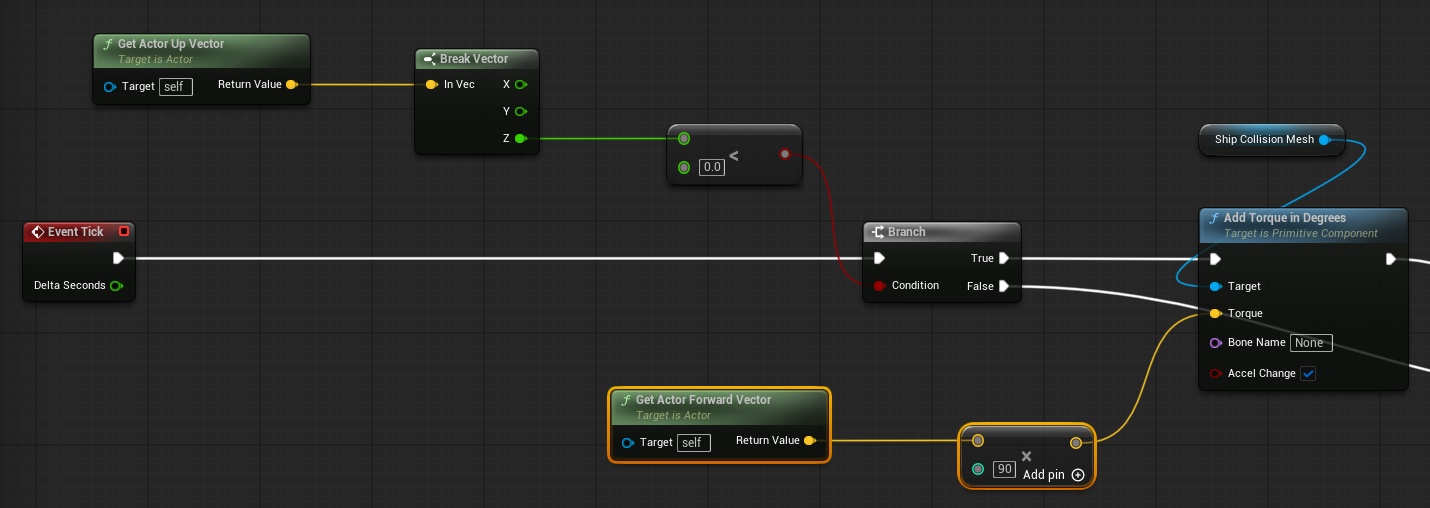
Ship collision handling

This takes the hit, gets the direction the hit was from, and makes an opposing direction vector with a slight difference, such as “away” from the collision normal.

Barge

After implementing artifacts, multiple methods of interacting with them, and the swimming system, the next step was to provide the player with a reliable way to store collected items while navigating the world. Without a dedicated storage area, artifacts would end up covering the ship leading to a cluttered walking area.

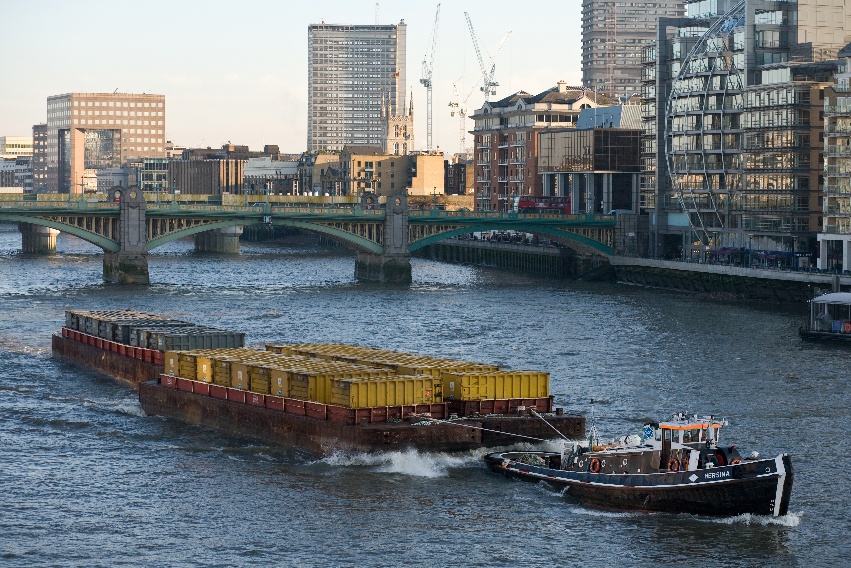
To solve this, I decided to create a barge blueprint that will be towed behind the player’s ship. For the initial implementation (Tier 1), I have chosen a skip styled container as a simple and practical solution for holding the Artifacts. This design fits the games’ theme of being in a world on the edge, where people would have to use anything, they can to survive.

    This idea was implemented by using a new actor called “BP_Barge”, with its structure being set up similarly to the ship blueprint but adapted for its role as a towed storage unit. This was easily turned into a floating blueprint by giving it the BPC_Buoyancy component. This blueprint also had the appropriate collision setup and attachment points as the ship bp so it can be easily connected to the ship.

    The Barge has some overlap boxes to make sure that when the Artifacts are inside, they wont be launched around while the ship is moving. This works by having them be attached to the actor, and having their simulated physics turned off. Otherwise, they could clip through the mesh and fall back into the water.

Barge blueprint

When they are removed from the barge, physics are re-enabled allowing the object to behave normally again.

Here is an example of me doing some limit testing to see if the system will correctly detect all the items and turn off their physics and attach them to the barge.

Next, I worked on attaching the Barge to the Ship.

My original approach was to use a fully simulated chain, like the one I used earlier in the project. While this provided a high level of visual and physical realism, it introduced instability and a significant performance cost, especially when combined with existing buoyancy and chain physics. Due to these limitations, I decided to move to a more controlled and robust system.

The final implementation uses a combination of Cable Components for visual representation and a single Physics Constraint to handle the physical interaction between the ship and barge.

The Physics Constraint is configured to allow a limited range of movement between the two actors. By adjusting its linear limits, I introduced a small amount of flexibility in the distance between the ship and the barge. This allows the barge to move slightly closer or farther away from the ship, simulating the natural slack and tension of a towing cable.

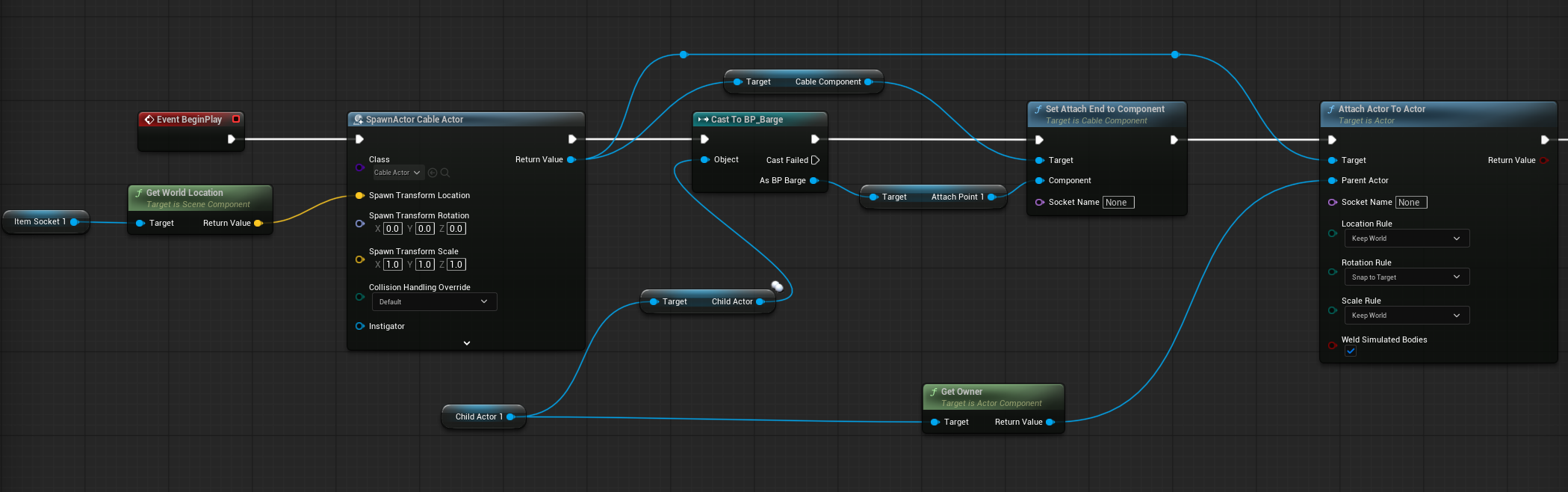
On BeginPlay the cable is dynamically created and attached between the predefined socket locations on both the ship and the barge. This ensures a consistent alignment and flexibility if I decide to have more tiers for the ship/barge, easily allowing for me to move the sockets to the correct locations. It is important to note that the cable is purely visual, while the Physics Constraint is responsible for maintaining the physical interaction between the two actors.

Ship and barge connection

This is what I was thinking about when creating this in the first place, and what could be implemented for higher tiers of ship/barge.

Future ship and barge concept
Ship Wheel

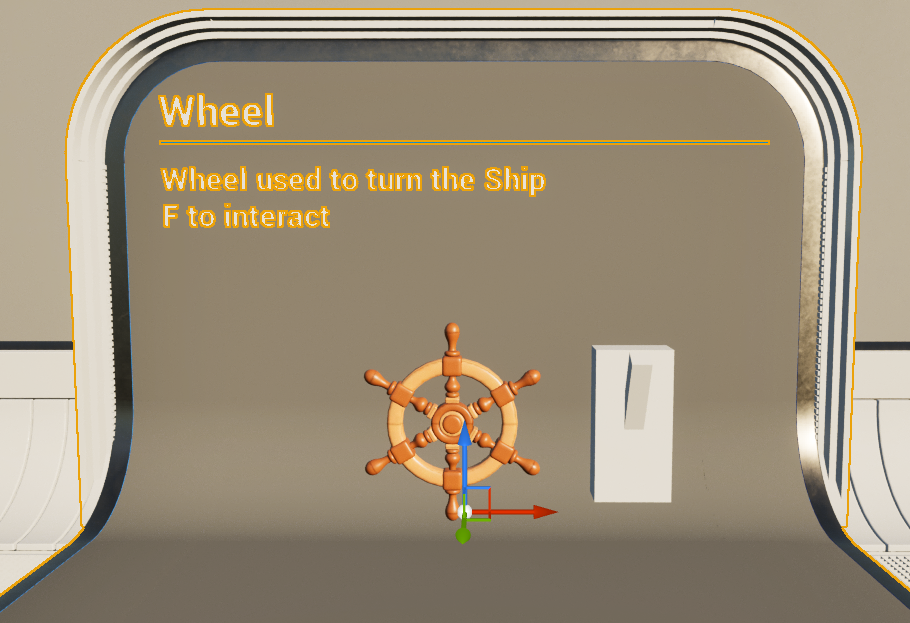
To allow the player to control the ship, I implemented an interactive ship wheel mechanic. This was created as a dedicated blueprint that I will attach to the ship ensuring the control logic remained separate from the core ship movement system.

Ship wheel blueprint

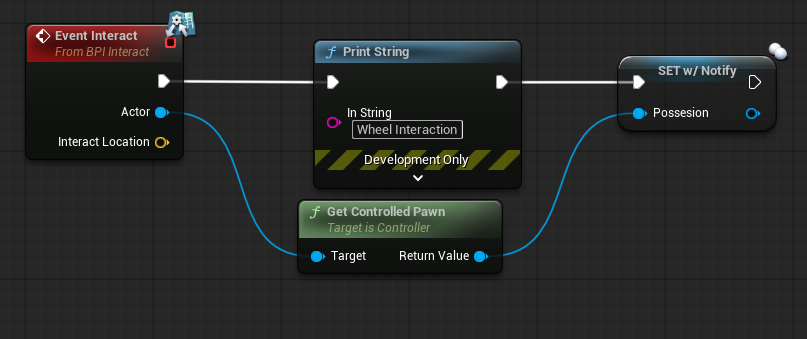
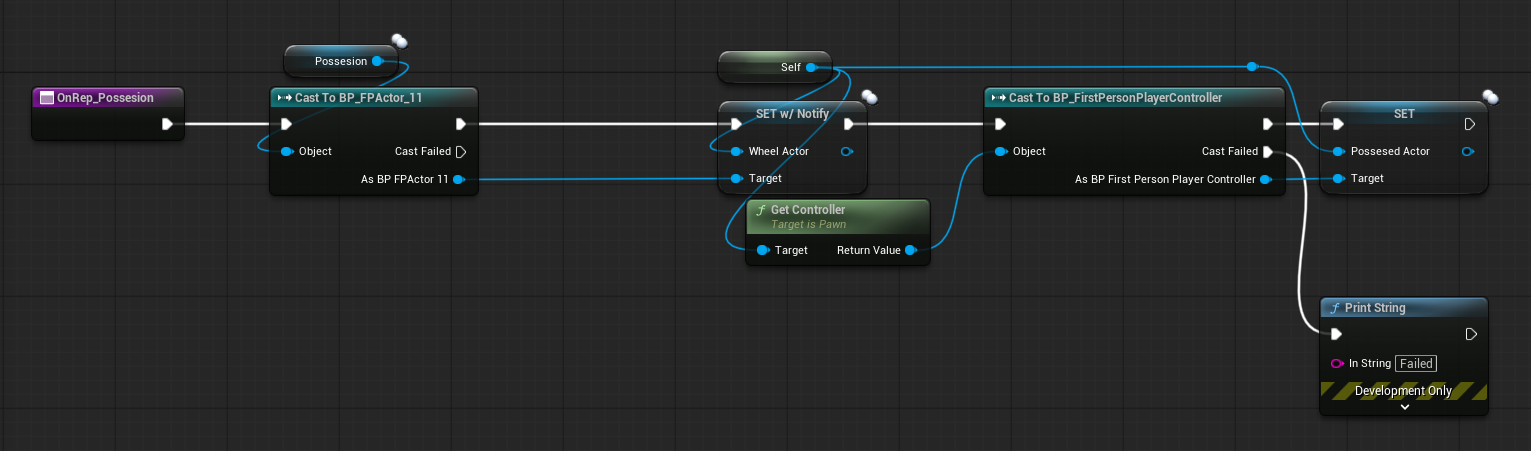
The wheel uses the same Blueprint Interface to handle player interaction as the ladder. When the player interacts with the wheel; control is transferred by having the player possess the wheel actor. While I could now use the player controls directly on the wheel, I instead replicate movement from the player controller to the ship.

Ship wheel player possession

This then allows the player to control the direction of the ship by taking the players movement attempts and redirecting them to ship movement.

Ship movement control

This entire system is replicated allowing for other players to see them moving the ship.

Occlusion Settings for Water in Barge/Ship

One of the issues I encountered during development was water clipping through the interior of the ship and barge. This unfortunately completely breaks the immersion, as the waters surface should not appear inside enclosed spaces.

As you can see from this clip, the water keeps moving through the ship.

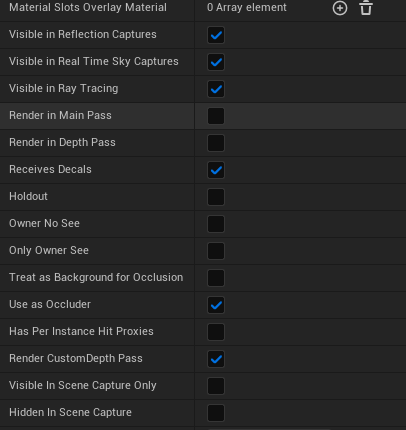
To resolve this, I implemented a custom occlusion system using a hidden mesh. This mesh is placed within the interior volume of the ship and barge and is configured with no collision. It is not rendered in the main or depth pass, making it invisible to the player.

Instead, the mesh is rendered only in the Custom Depth Pass and used as an occlusion mask within the water material.

Water occlusion mesh

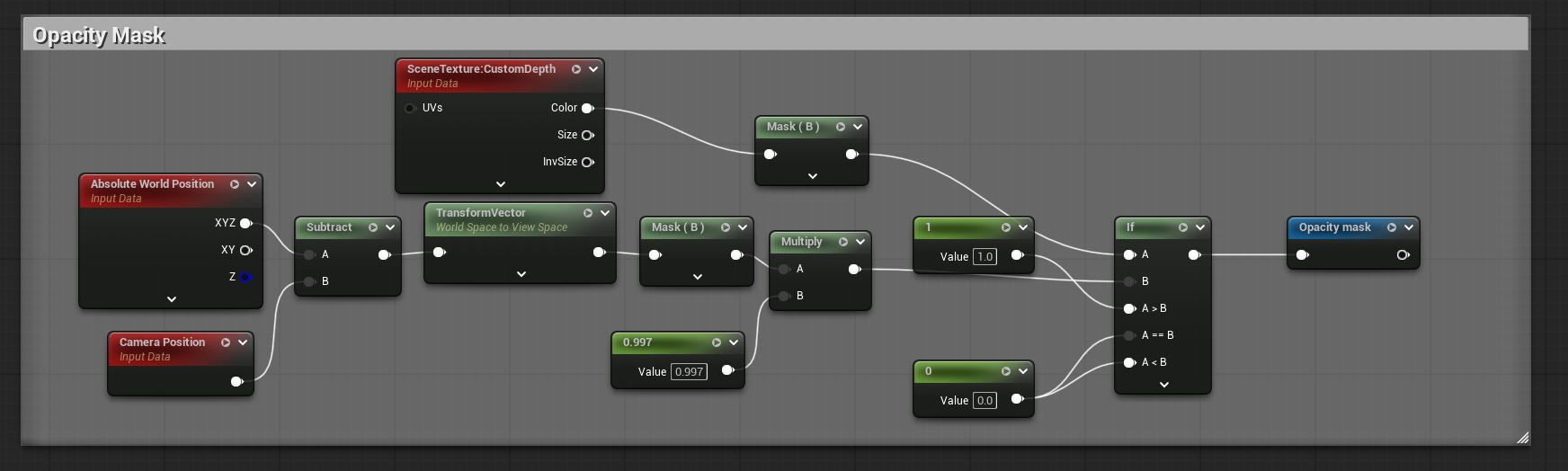
Within the water material an opacity mask is calculated by comparing the cameras position and angle against the custom depth pass mesh. Where the occluder is detected, the waters opacity is set to 0, therefore removing the water visibility from those regions.

Water material occlusion mask

This new clip shows the occluder volume being used on the ship. While it is not perfect it does what it needs to do.

However, the reason why this is not “perfect” is due to the water waves being taller than the ship, so realistically the waves would go over the ship anyway.

Self-Righting Ship and Barge

During testing I encountered scenarios where the ship or barge could flip over, either due to intense wave forces, or collision interactions with scenery. This would create situations where the player would be effectively soft locked and unable to continue progressing in the game.

To address this, I implemented a self-righting system that detects when the ship or barge has been overturned and applies a corrective force to return the ship to its upright position.

Self-righting ship blueprint

This mechanic is used on both the ship and the barge, ensuring that the player won’t have issues with either being stuck upside down. Furthermore, I have also applied the occlude volume to the Barge.

Net

After all the work I have put in for the game systems and player mechanics, I realised there wasn’t a proper way for the player to get the Artifacts into the Barge. The player could try connecting the cable to the Artifact and dragging it into the Barge, but this is inconvenient and unintuitive.

To solve this problem, I created a net that would hang behind the Barge and under the water, almost like Sea Trawling.

I implemented this idea, however I didn’t have it go along the surface of the ocean floor, and instead had it pulled behind the Barge like a big open Net.

The net has a gravity force that pulls nearby Artifacts into the centre of the net and then sets them as attached to the net to ensure they don’t move around too much when the ship moves, or the waves bob the barge around.

When the Net is activated, it will close over the top of the Barge. This will bring any Artifacts that are inside the Net up to the Barge and then deposit them inside the Barge.

I used skeletal meshes applied to a Net Mesh along with a sequence of actions to make the net move. The net also has collisions, so if the Artifacts were allowed to move inside the Barge, the net would work as a method to keep them inside.

Final Map Level

To create a playable environment, I developed a full-scale map for the player to explore. The initial landmass was generated using Gaea, node-based terrain generation software primarily used to create realistic 3D landscapes. This would be used for the main island the player would be visiting for the shop and starter location.

Gaea terrain generation

The terrain I generated in Gaea was imported into Unreal’s Landscape Editor, scaled to an appropriate size and aligned to where I wanted the water to line up against the landmass. Then I used a Landscape Material from UE5 FAB to set up the Snow, dirt, grass and rocks that would make the scene more realistic.

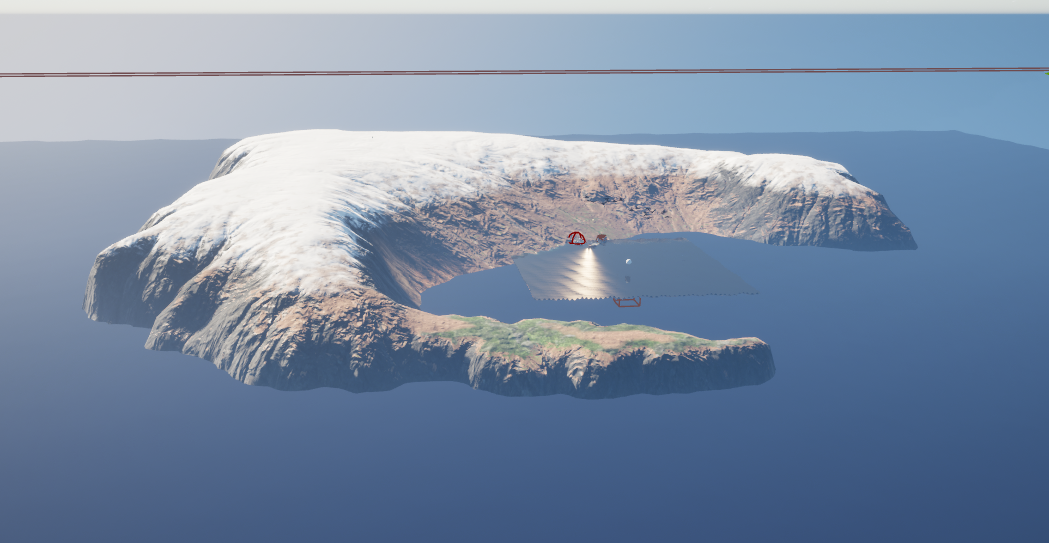
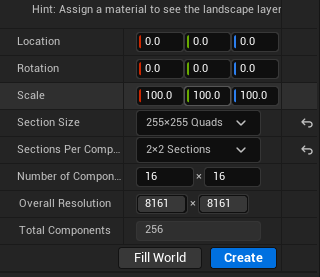
To expand the playable space, I used Unreal’s landscape editor again, but this time I created a large map with an approximated size of 8km by 8km, therefore providing sufficient space for the player to use.

Unreal Engine landscape map

However, when I tried uploading this to GitHub I ran into some issues. This was caused by the massive file size of the landscape, which was over 100MB big. I did some research and eventually concluded that I would need to use World Partitioning.

This allowed me to set up a dynamic loading system that would only load in what was in a certain distance from the player, therefore optimizing the world and decreasing the 150MB file size down to 15MB.

Once this size issue was sorted, I began sculpting the map into what I would want the player to see. This started off with me creating islands and points of interest for the player to visit and then detailing the entire map with the noise tool, to make sure the bottom of the ocean wasn’t completely flat.

I did this faster by increasing the size of the Noise Tool Scale 8x its normal max size, otherwise it would have taken hours to detail the entire ocean surface.

This is the result.